Introduction
This page shows how to communicate with the Sustainder Brokerage Layer using Postman in combination with a Postman collection. This collection includes an example of most commands, as well as an implementation of the JWT authorization scheme.
Getting started
This section will explain how to install postman, import the collection and request the JWT token used for authentication.
Download Postman from https://www.postman.com/downloads/ and install it on your system.
Import the collection
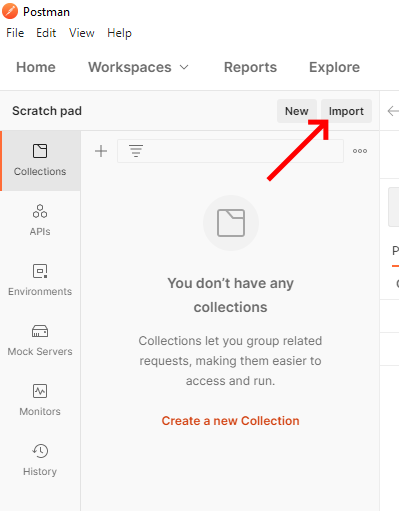
Download the example Postman collection and open it using the import button on the scratch pad.
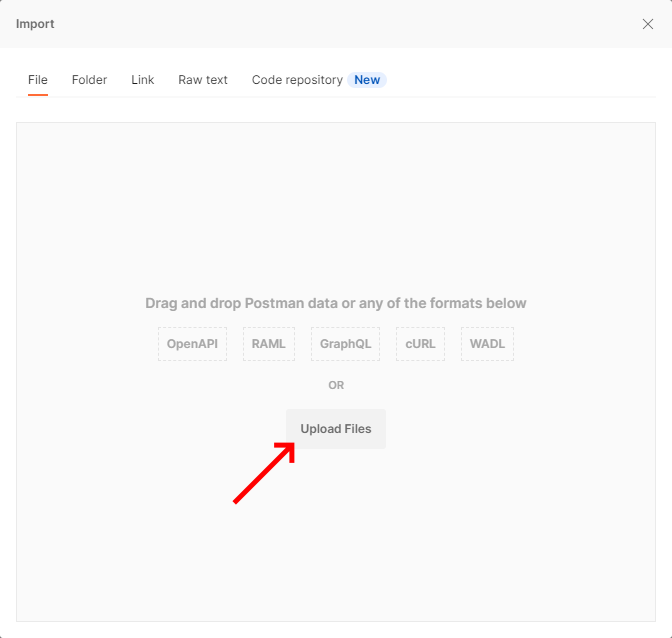
In the Import screen that pops either select Upload Files and browse to where you stored the Postman collection, or drag the Postman collection file from your file explorer onto the import dialog.
Set your username and password
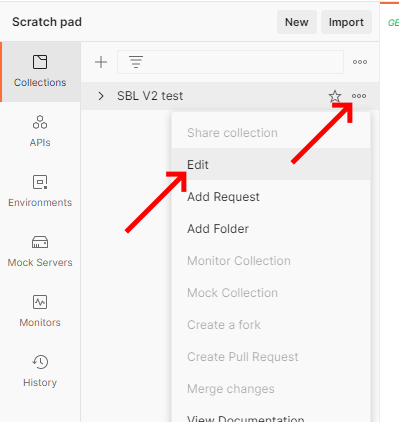
IMPORTANT: make sure to select the ... next to SBL V2 test, note that these might be hidden until you hover your mouse over the area.
Update the credentials by pressing the ... symbol next to SBL V2 test and select edit.
Browse to the Variables tab and fill in your username and password in the CURRENT VALUE column, then press the 'Save' button.
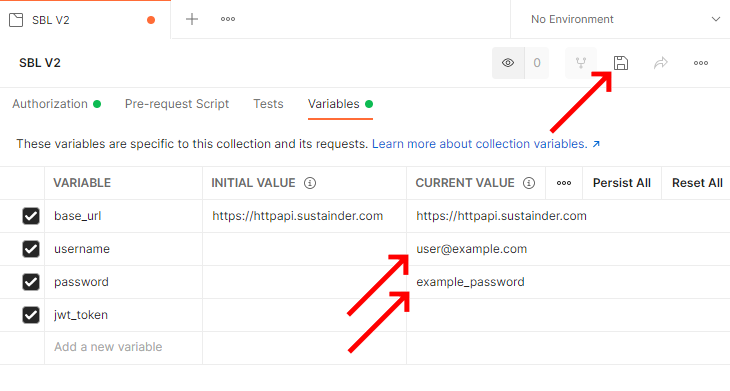
Setting the username and password only needs to be done the first time after importing the collection or after changing your username or password.
Request the JWT token
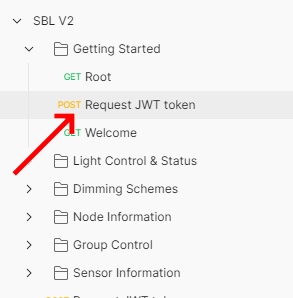
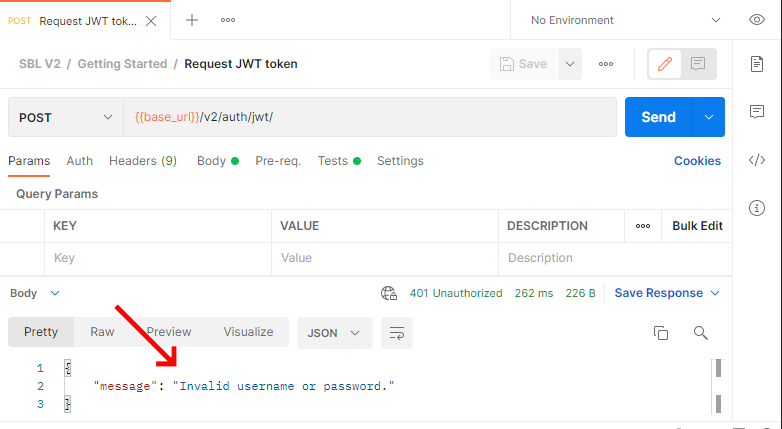
After setting your username and password the next step is to log in. To do this first expand the collection and click Request JWT Token.
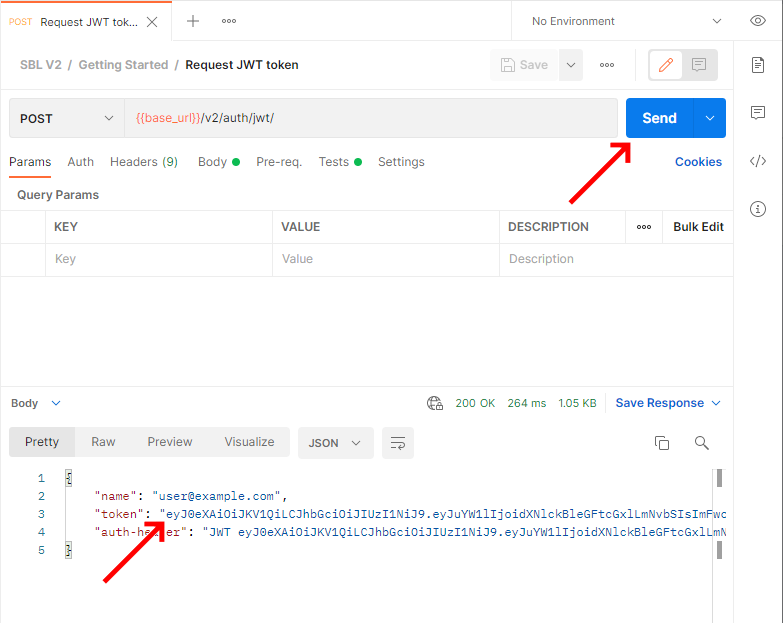
This will open the JWT token command, press send. If you have added your username and password correctly the response field will show you the JWT token you've received.'
The JWT received is parsed from the received answer and set as a parameter that you can see in the collection screen. This variable will be automatically used in the authentication header for all requests in this collection.
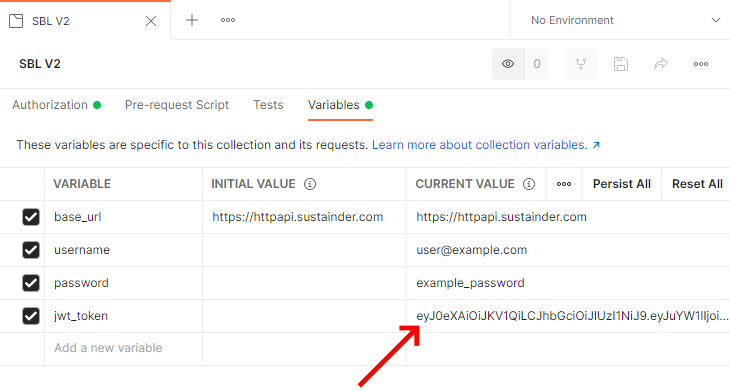
If you receive an error instead of a JWT token double check your username and password. Also make sure you have saved the credentials in Set your username and password.
Verify login
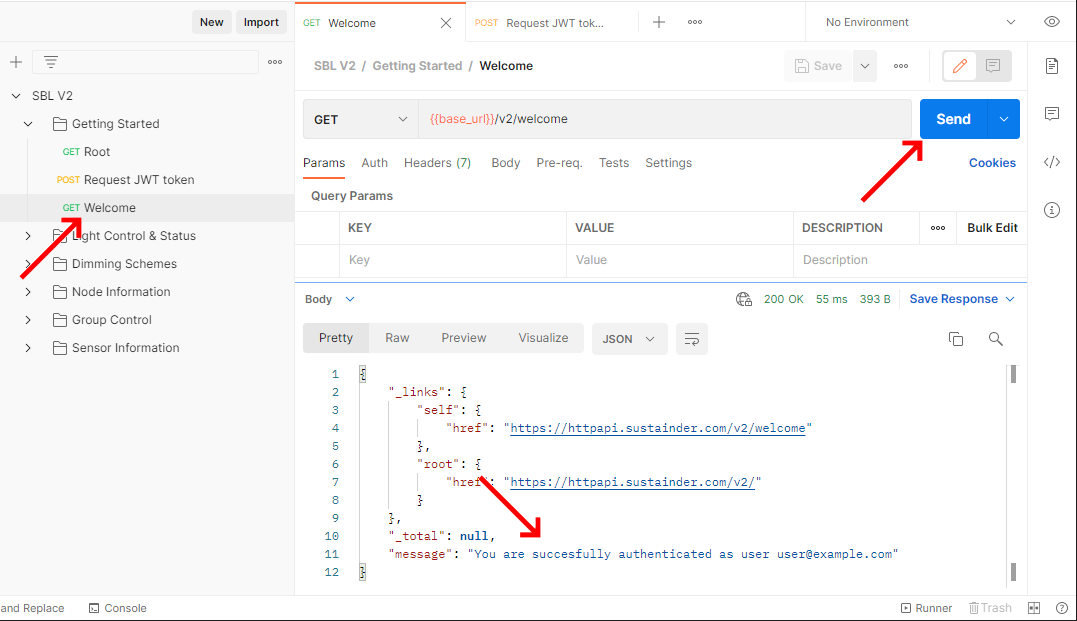
The last step is to verify that you are logged in correctly and can communicate with the Sustainder Brokerage Layer. We can do this by sending the Welcome command. Click Welcome in the list of commands, then press send. If everything went well you will receive a short welcome message.
Lcm Control & Status
This section will explain how to handle the lighting control modules (Lcm) of the Sustainder Lighting Solution. It will start by showing how to request the full list of Lcms associated with your account, this will also give the latest available status. Then show how to override the lightlevel and how to go back to automatic dimming. Lastly it will show how to change the configuration of the light (e.g. turn off the housing side of the Anne permanently to avoid glare into someones living room).
New Lcms are added by Sustainder and will appear automatically when listing the Lcm list.
Request the Lcm list
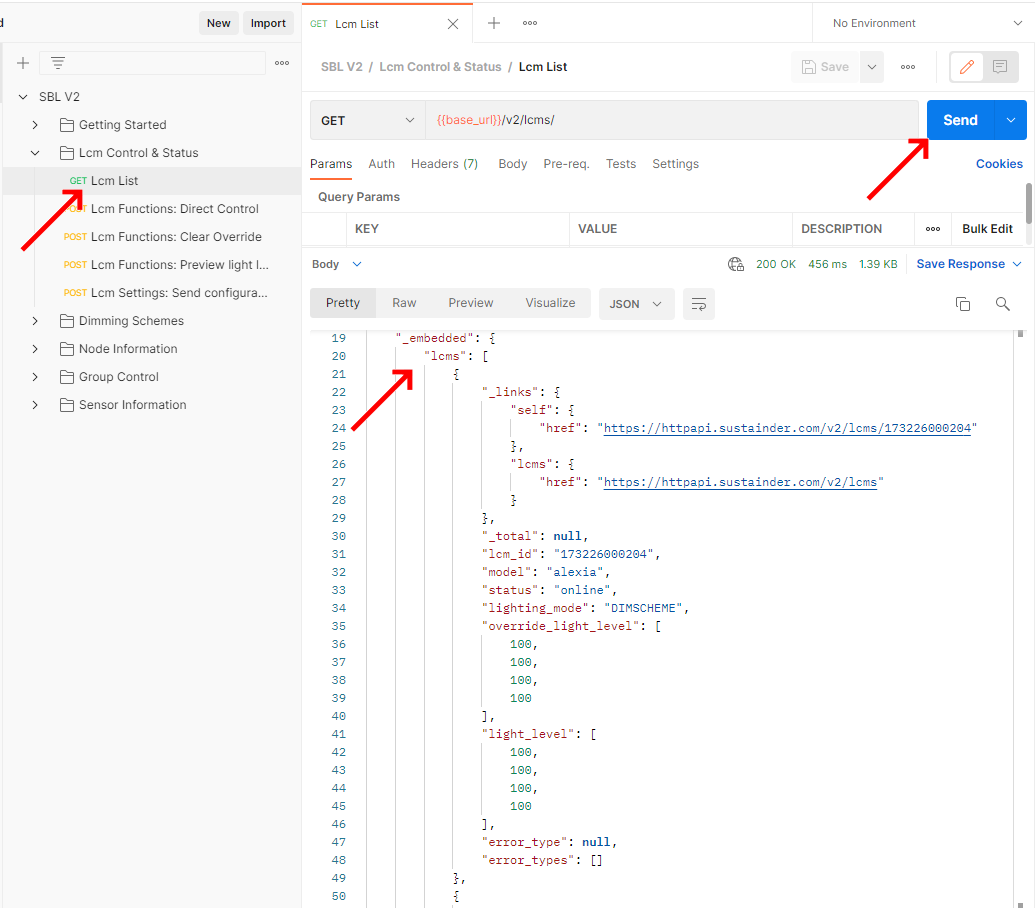
Before controlling your lights, the first step is to request the list of all lights under your control. This can be done using the /v2/lcms request. Open the Lcm List command and click Send.
Request lcm status of specific Lcm
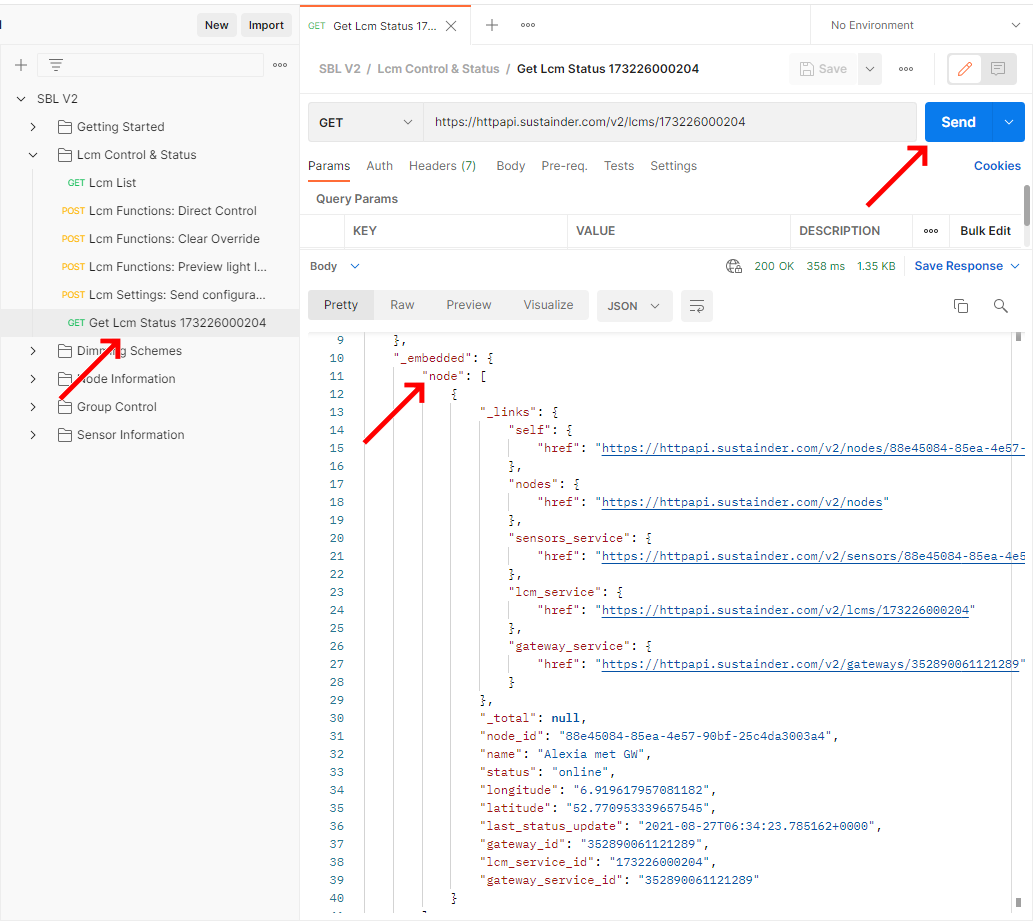
It is also possible to just get the latest status of a specific Lcm, there is no command prepared for this in the example collection but you can create your own in the following manner. In the response to the Lcm list left-click the link of the Lcm you wish to see the specific data of. Do not use Ctrl+Click as this opens the link in a browser. The used command is LCM details

This will create a new command that is opened in a new tab. This is not part of the SBL V2 collection, and does not have the JWT token link. To fix this press the save button.

This will give you a popup that will allow you to save it to the SBL V2 collection. You can give it your own name for easier future referencing and give it a description if you like. Browse to the Lcm Control & Status folder in the SBL V2 collection to save it there to keep things organized and then select Save.
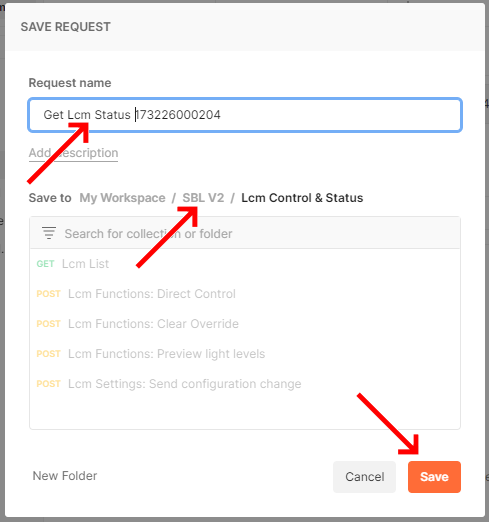
Your new command is now ready for use with your credentials, and will be available next time you open up Postman. You can now use it like any other command in the collection, press Send and in the response all the relevant data is shown.
Temporary Light overrides
This section will explain how to set a temporary light override on your system. These overrides last until
- the override is ended with Go back to automatic dimming (Clear Override)
- the duration in minutes in the optional duration field has passed.
- power to the lcm is ended
- using the Sustainder Light App a user has selected Set to defaults in the Direct Control screen
Direct Control
A similar command exists for groups using the /groups/functions/direct-control path using a group-id field instead of lcm-id.
To set a temporary override on a lamp the Direct Control command is used. Open the Lcm Functions: Direct Control command. Click on Body to show the payload for the command. It contains of a json list of one or more devices with an lcm_id and an override list. The lcm_id indicates for which Lcm the override should be active, and the override list gives the light level for the 4 different channels of the Armature. The example command include the optional duration field. This has a maximum of 240 minutes (4 hours). If it is not included the override will stay active until cancelled by a command or a power cycle of the device.
The override list indicates the light percentage for each channel, in case an Lcm only has one channel (e.g. a Mira) only the first channel has effect. As the levels are percentages 0% is fully off and 100% is fully on.
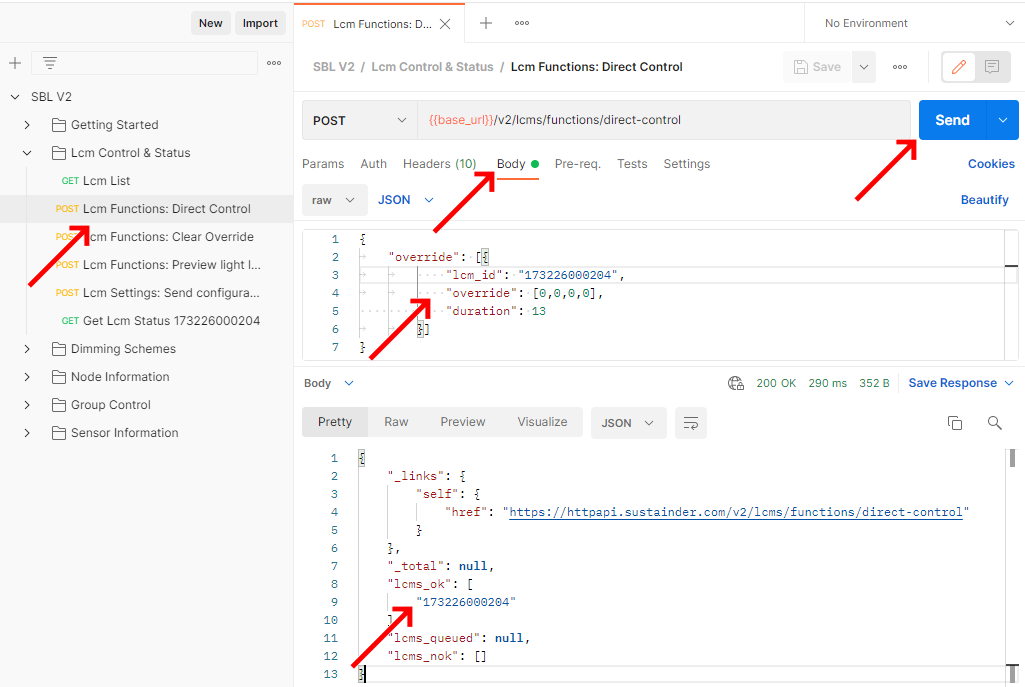
When the command is accepted all devices that are handling the command are in the lcms_ok group. Devices that do not accept the command are in the lcms_nok field. The queued field is not used for direct control as it can only be transmitted while the devices are powered and the gateway is online.
Go back to automatic dimming (Clear Override)
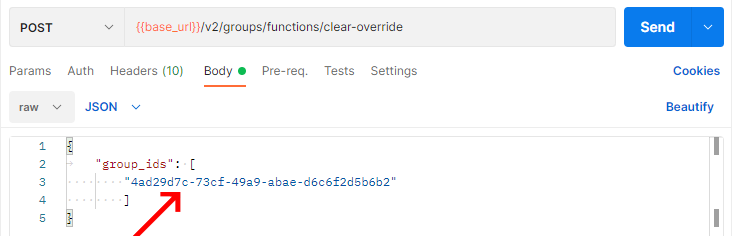
A similar command exists for groups using the /groups/functions/clear-override path using a group-ids field instead of lcm-ids.
IMPORTANT: If the system uses motion and/or ambient for its light level this will NOT go back to the light level given from a motion trigger or ambient daytime override, but will instead go to the level specified in the dimming scheme. This can result in lights being on during the day or lights dimming down while there is traffic.
To clear a temporary override and resume normal dimming operation, the Clear Override command is used. open the Lcm Functions: Clear Override command. Click on Body to show the payload for the command. It consists of a single lcm_ids list that lists all Lcms that should clear their overrides.
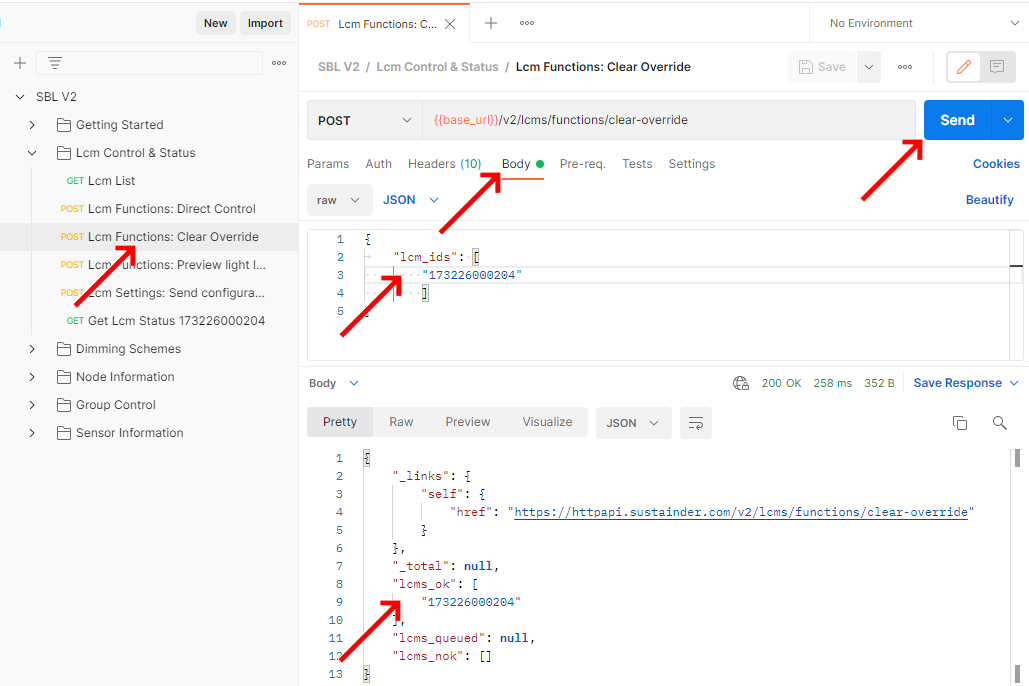
When the command is accepted all devices that are handling the command are in the lcms_ok group. Devices that do not accept the command are in the lcms_nok field. The queued field is not used for direct control as it can only be transmitted while the devices are powered and the gateway is online.
Permanent light level configuration modification
This section will explain how to change the configuration of light levels permanently on a light. This can be done for instance to dim the quadrant of an Anne that is shining into someones living room, or to lower the overall levels of an Alexia that was found to be too bright for a location.
There are two commands related to changing the configuration, the first one is to preview the desired level. This can be used to verify that the new 100% level is the desired level. It will set the light level regardless of previous settings, so for instance a previously dimmed Anne side can be set brighter (or darker) than is currently possible with a normal direct-control message. The second command is to set the actual level, this will change the new direct-control or dimmingscheme 100% (and all other dimming percentages) to use the new values as the maximum.
Preview configuration change (Preview Light Levels)
To preview a configuration change before actually committing it to an Lcm the Preview Light Levels command is used. This can be used to verify in the field that the level are acceptable with the new changes.
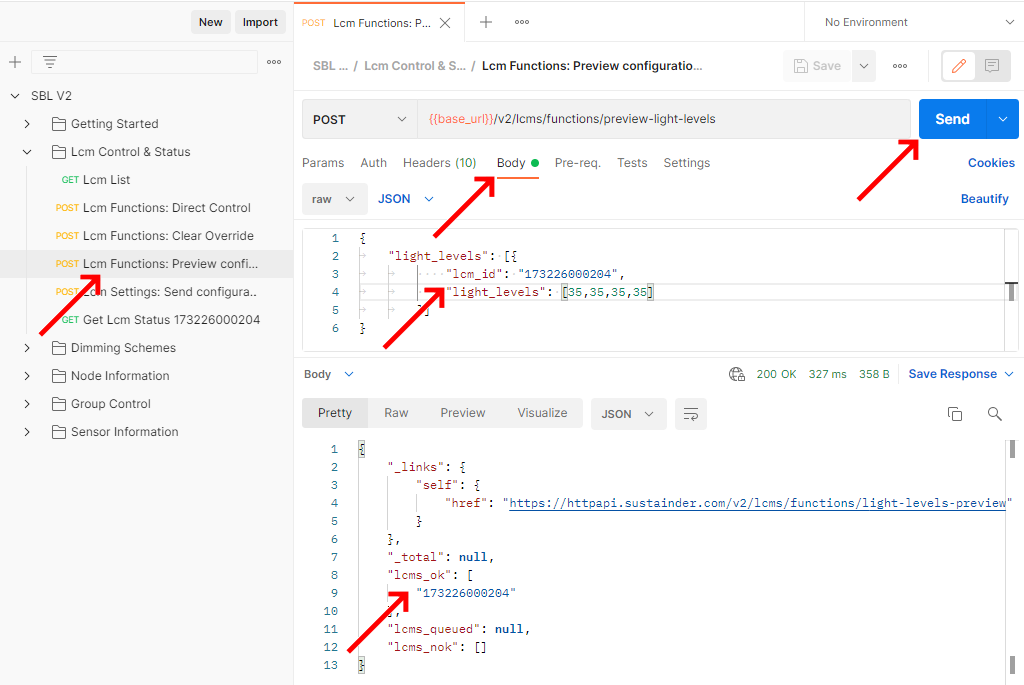
When the command is accepted all devices that are handling the command are in the lcms_ok group. Devices that do not accept the command are in the lcms_nok field. The queued field is not used for preview configuration change as it can only be transmitted while the devices are powered and the gateway is online.
Set configuration change (Light Levels)
IMPORTANT: In some cases it is possible to set the level higher than what it was when produced. Make sure to not exceed safe levels for the power cables and fuses used for the system.
To change the new maximum levels of the Lcm the Light Levels command is used. This command can be set so it is queued when the gateway is currently offline
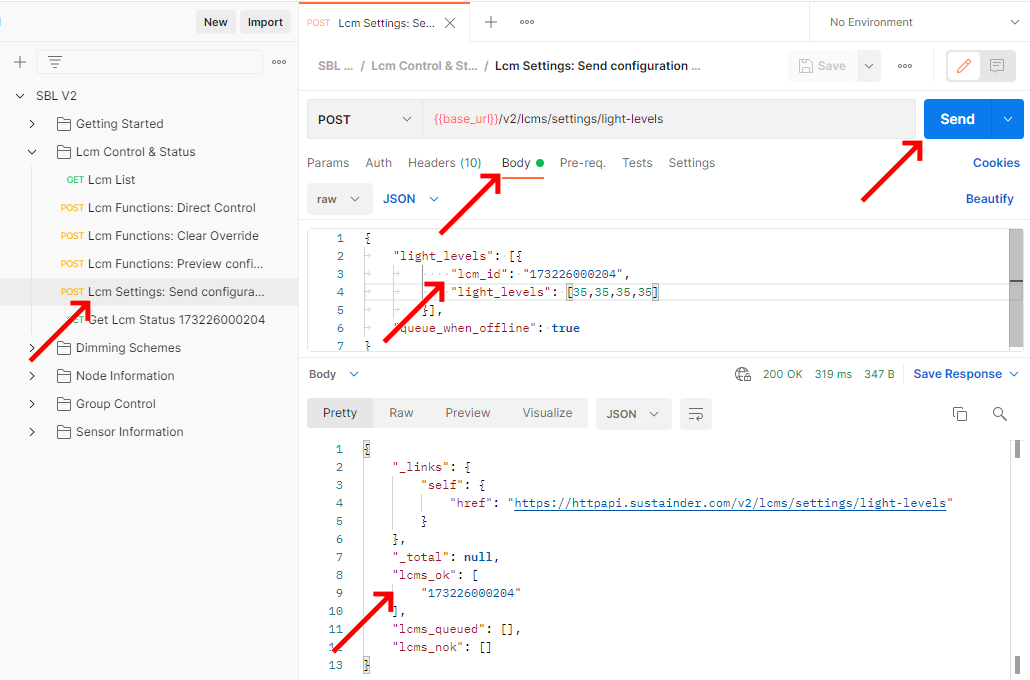
When the command is accepted all devices that are handling the command are in the lcms_ok group. Devices that do not accept the command are in the lcms_nok field. If the gateway is offline when the command is send the Lcms that are not currently reachable will be in the lcms_queued list. When the gateway comes online this data is then propagated to the Lcms when possible.
Dimming Schemes
One of the most important features of a Smart Lighting Solution is the ability to perform and update dimming schemes on the lights in the field. A dimming scheme is a schedule that tells the light to be at a certain light level at a certain time on a certain day of the week.
In the Sustainder way of setting dimming scheme the dimming scheme is made up different building blocks.
- step: this is a combination of time and level that indicates that from this time onwards the light level should be as indicated.
- scheme: this is a set of steps that make up the schedule for one day.
- calendar: this linkes a scheme to one or more days of the week.
Calendars are always set for the entire week, so make sure to link a scheme to every day of the week. If a day is missing the system will take the last step of the day before that and will assume that the entire day will be that level. So if the last step in the scheme for Tuesday has a lightlevel of 50% and no scheme is given for Wednesday, the SBL will set the dimming level to 50% for all of wednesday.
As dimming schemes that are not set by backoffices can change quite often and cannot reuse names it would result in a long list of dimming schemes in the Sustainder App. Sustainder has chosen that dimming schemes set by this method are not listed in the app.
Creating new dimming schemes
There are two ways to create dimming schemes depending on the application. The first is to create a dimming scheme that is named and can be seen requested later, e.g. in the Sustainder app. The second way is for transient dimming schemes that are set by a backoffice that do not get a name and will not be usable in the Sustainder app.
Create permanent dimming scheme
The way to create a permanent dimming scheme uses the Create Permanent Dimming Scheme command. This creates a named dimming scheme that can be linked to one or more LCMs at a later time.
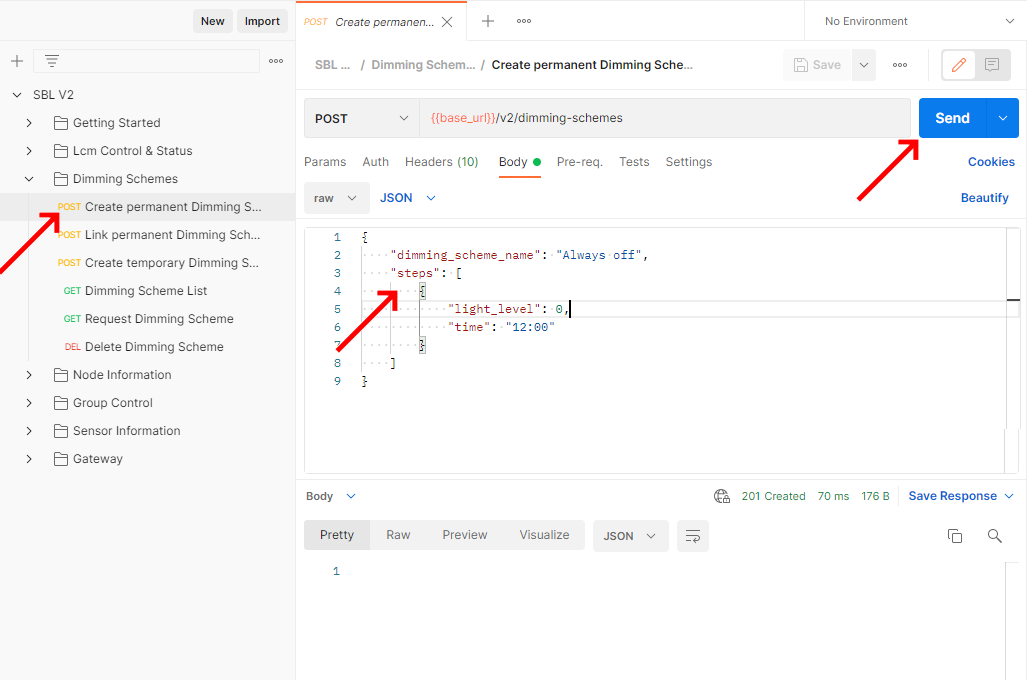
Link permanent dimming scheme to LCMs
After creating the permanent dimming scheme the next step is to link it to an LCM. This can be done using the Link Dimming Scheme command. In this command leave the calenders and dimming_schemes fields as empty arrays, and in the lcms field select the name of your permanent dimming scheme as the calendar_name.
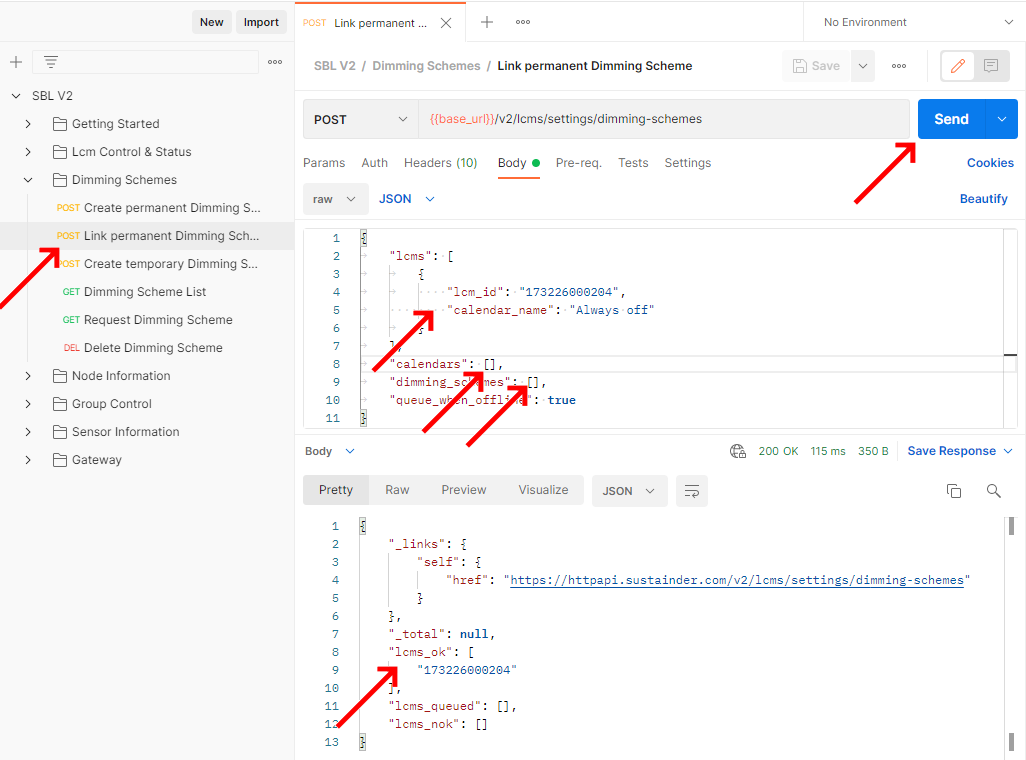
Create transient dimming scheme
The way to create a transient dimming scheme uses the Create Transient Dimming Scheme Command command. This will create and immediately links the dimming scheme for the specific weekdays to the LCMs.
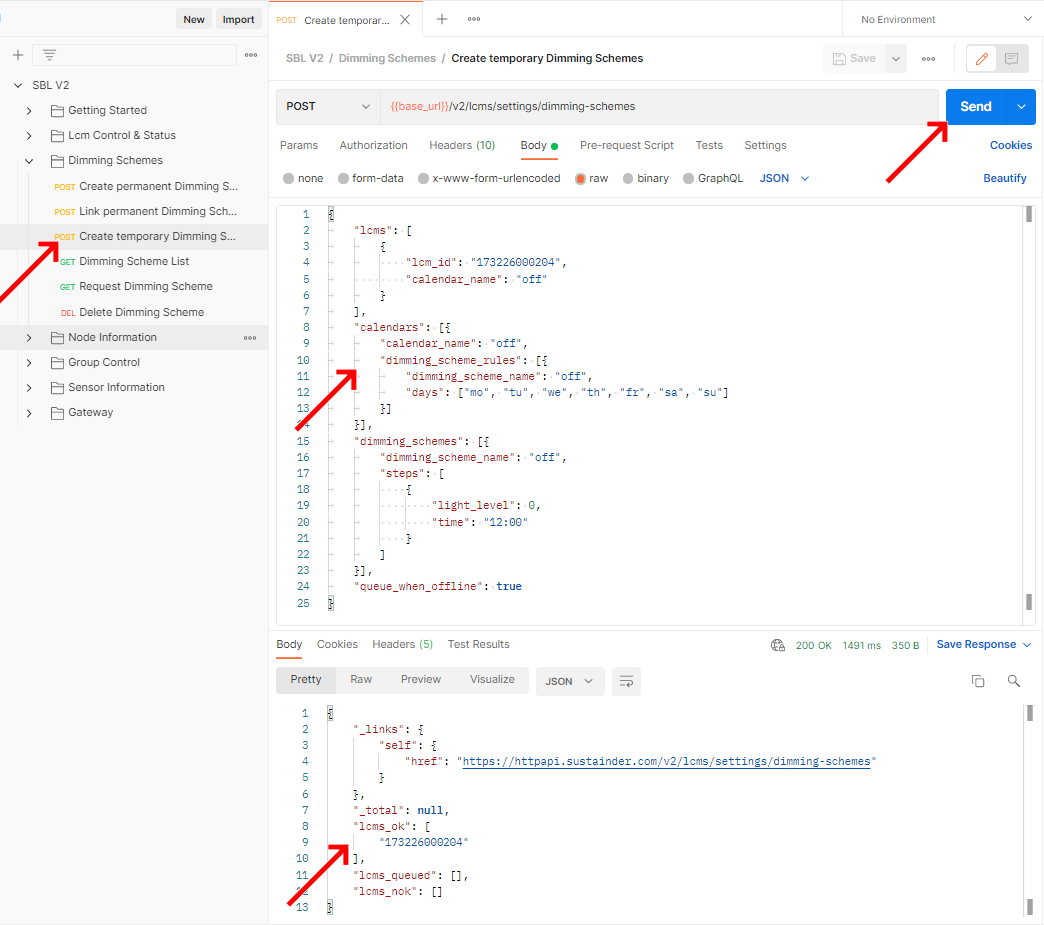
Requesting permanent dimming schemes
Dimming schemes created with the Create Transient Dimming Scheme Command command are not listed in the dimming scheme listing.
The command to list the dimming schemes is the List Dimming Schemes command. This is the same list you get in the Sustainder App.
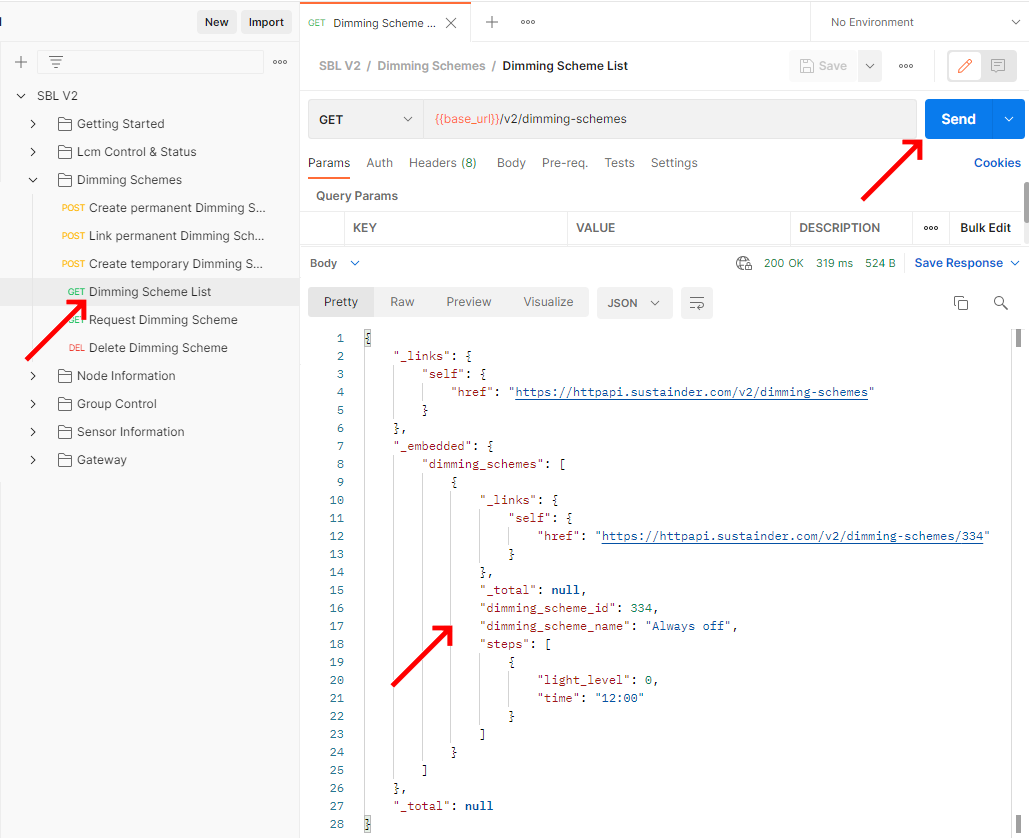
Requesting information about dimming scheme
This command can be used to request the information about a dimming scheme created by the Sustainder App or the Dimming Scheme Details command. It uses the dimming_scheme_id to indicate which scheme is being altered.
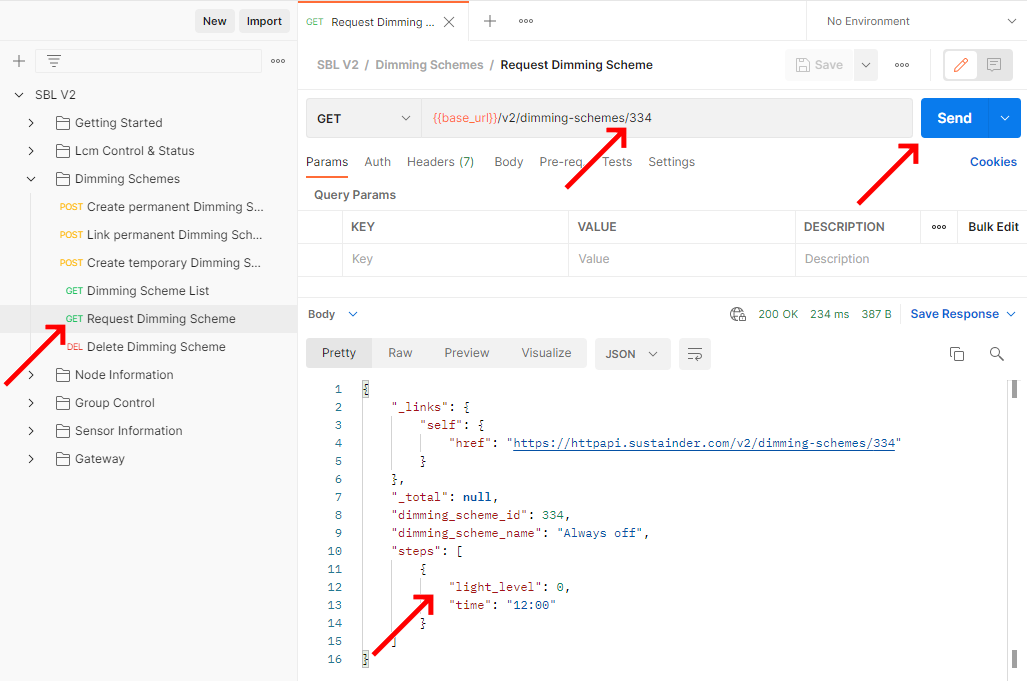
Node information
Nodes in the Lcm system are aggregate items that generally includes an Lcm component and optionally a Gateway component or sensor components depending on the configuration. They are identified by their node-id.
Request the Node list
Using this command the list of all known nodes for this system can be requested. When the system gets bigger this gets paginated
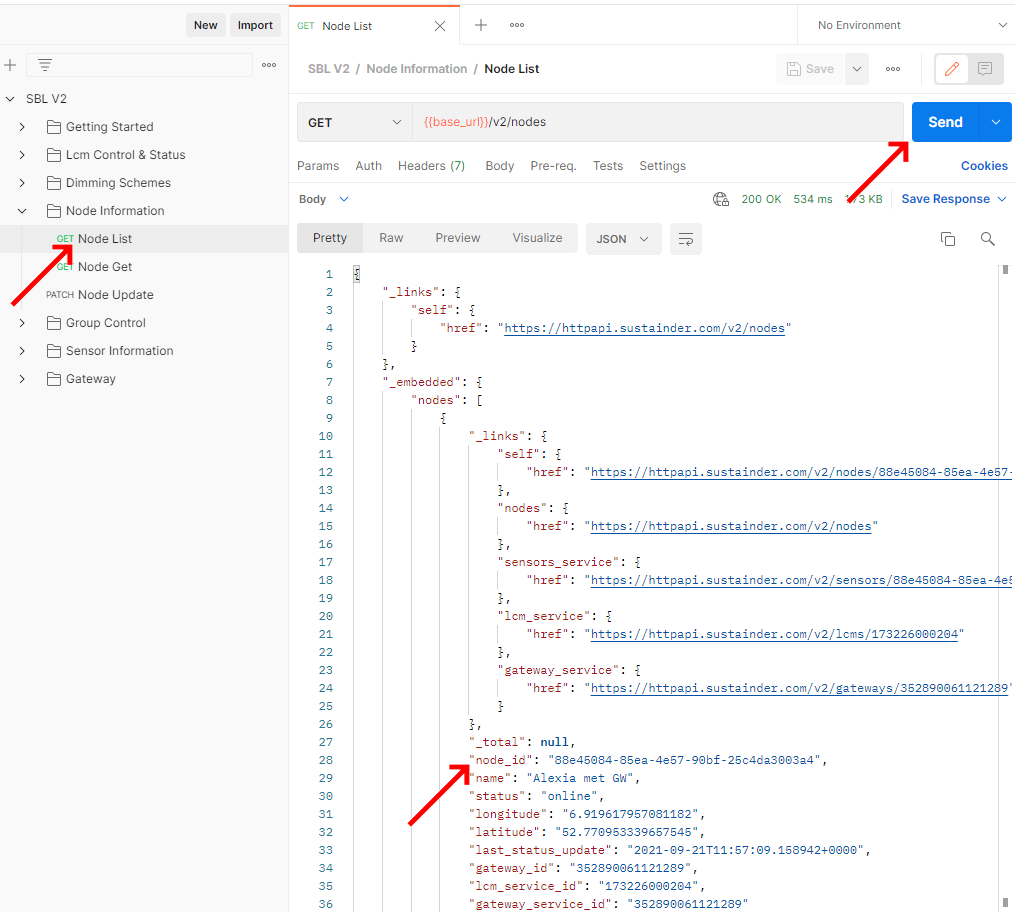
Request extended Node data of a specific Node
The node list command details some of the information of the node, using this command you can request all known information of a specific node.
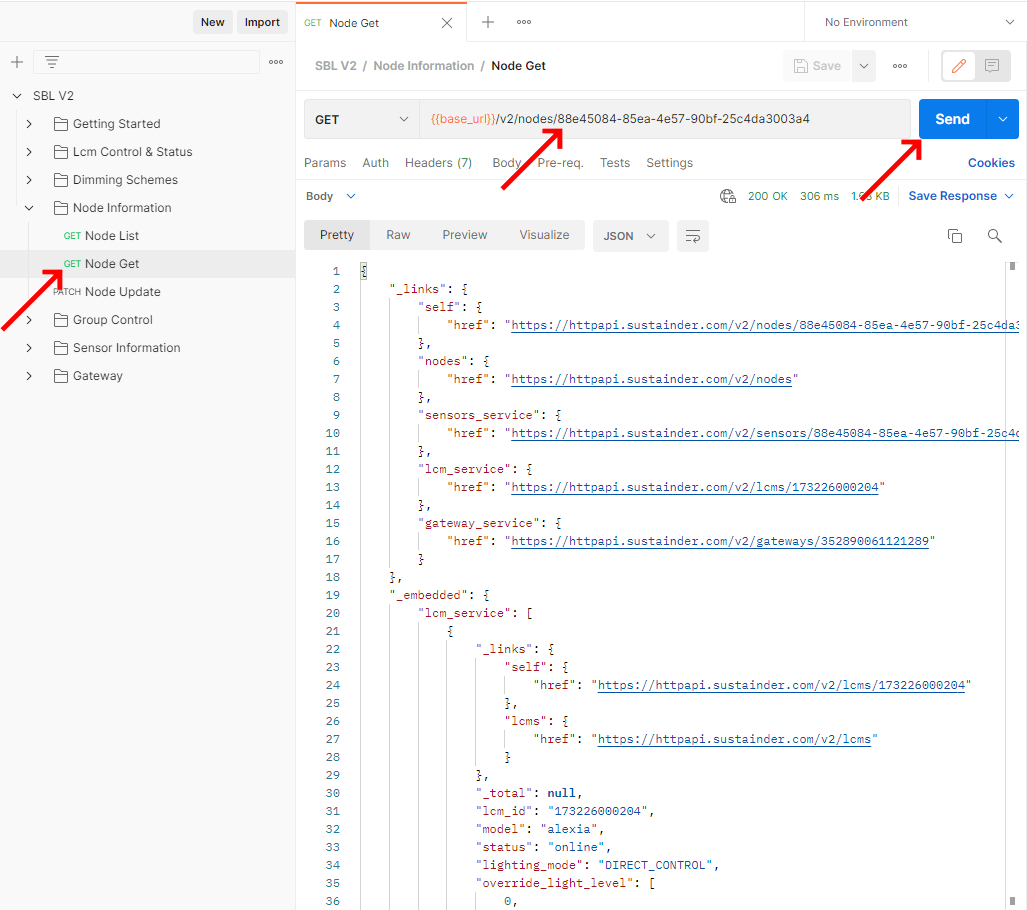
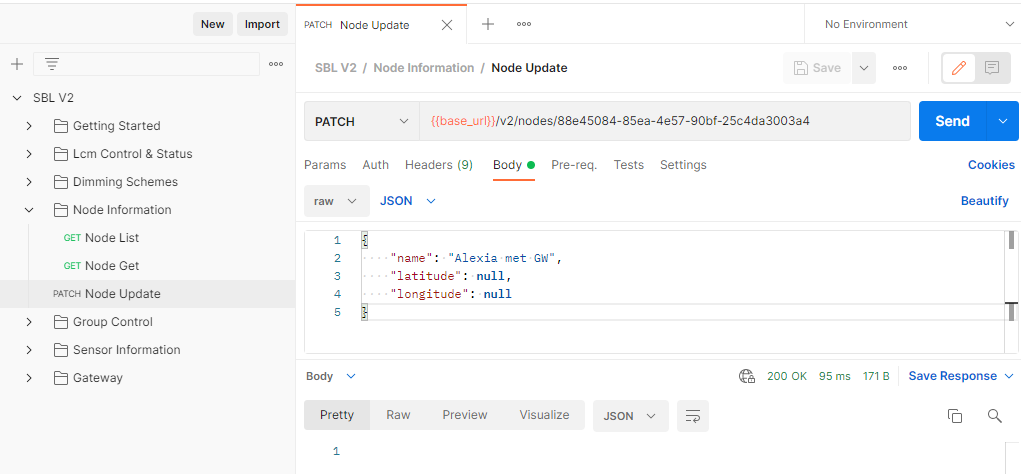
Update name and location of a specific Node
All parameters must be present, if you do not wish to update one, you can send a
nullvalue instead.
This command is used to update the name and/or the location of the device. The example given below only updates the device name and leaves the location unchanged.
Group Control
Besides control of specific lights individually there's also the option to control them as a Group. To do this you first need to create a group. Then you can use them similar to how you use single devices.
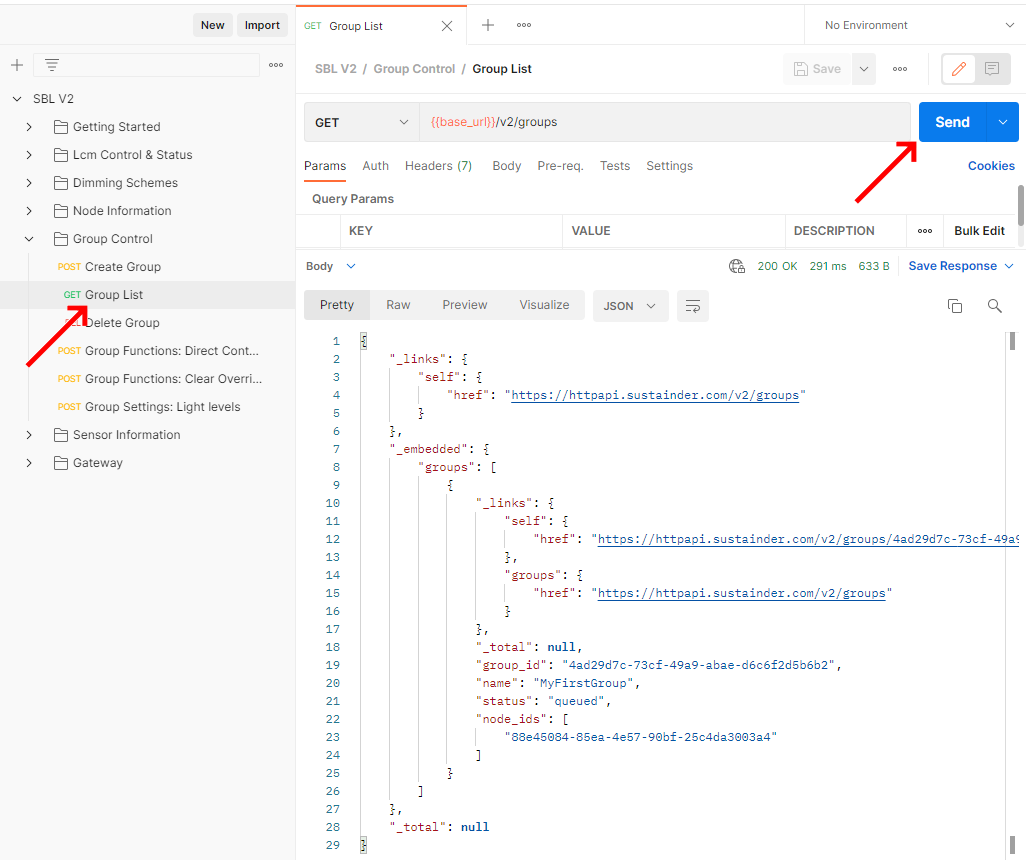
List groups
Use the Group List command to get all currently available groups
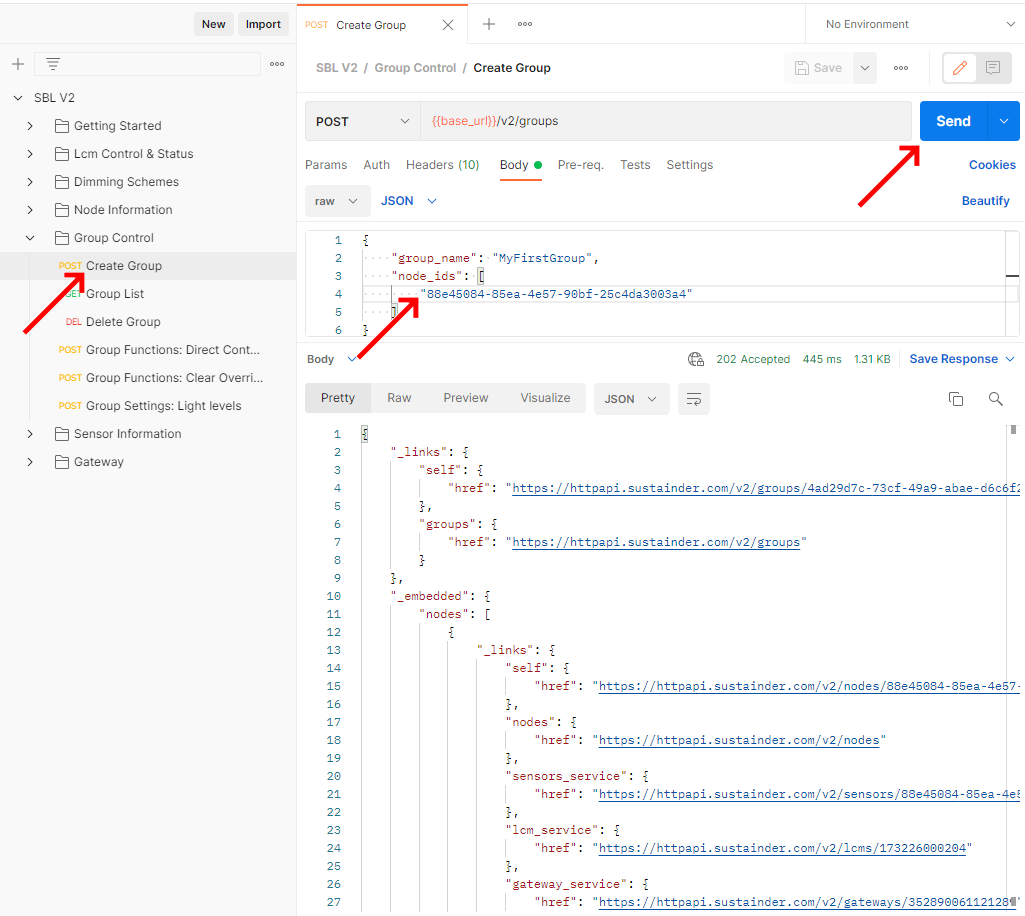
Create group
Use the Create group command to create your new group. List the nodes you wish to be part of your group and send the command.
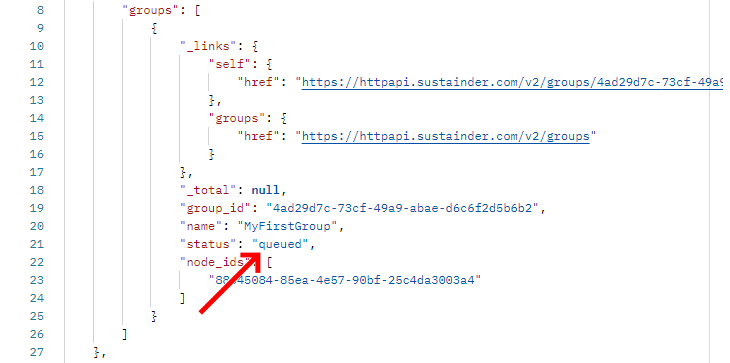
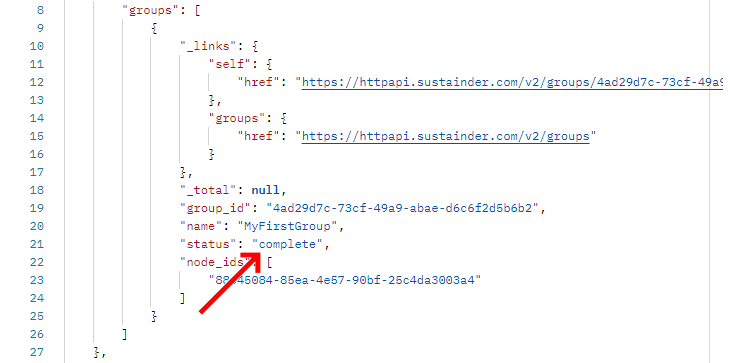
After the group is created it will be set to 'queued' in the group listing.
When the group settings has been sent to the nodes it will mark them as 'complete'.
Modify an existing group
It is currently not possible to modify an existing group. If you wish to add a device to a group, delete the group and recreate it with the missing nodes.
Delete group
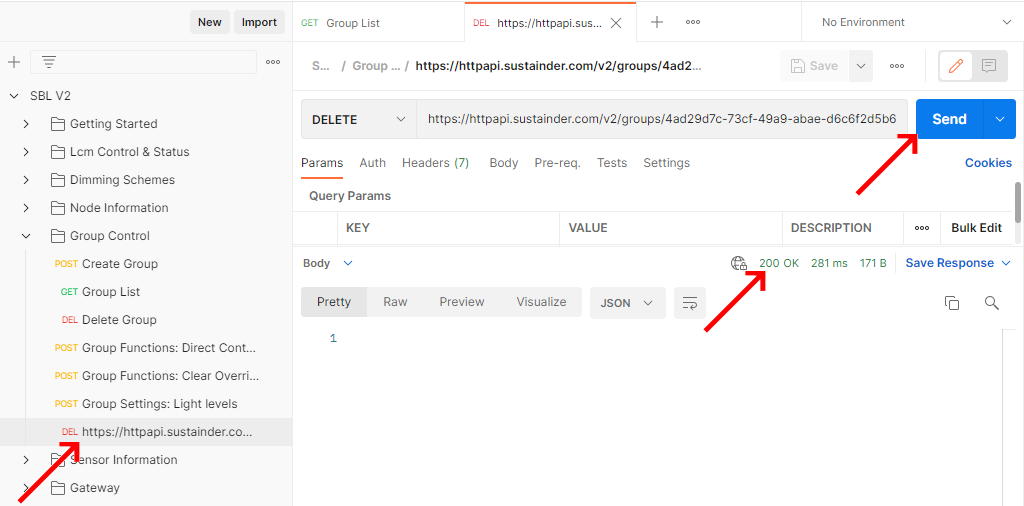
The way to delete a group is to send a DELETE request to /vs/groups/group-id. As the group ids change each time they are added and removed there is no example command in the example. To create your own command first perform the List Group command. In the result click on the link of the group you wish to delete.
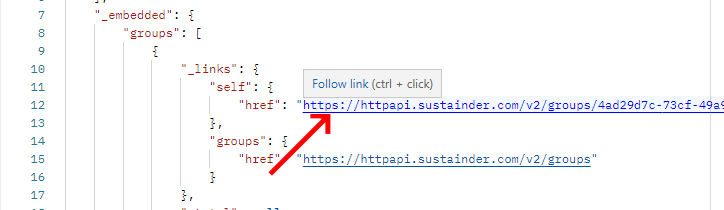
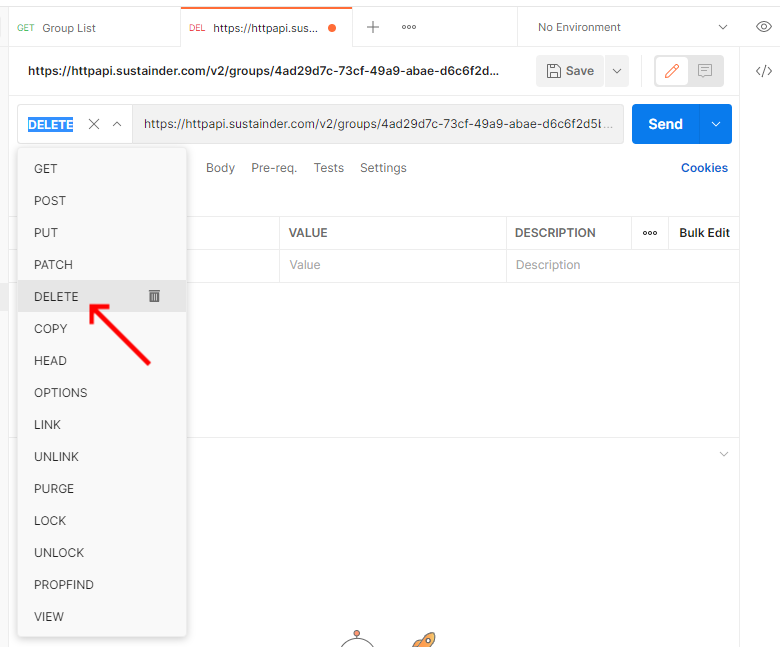
In the newly created request change the type of request to DELETE and save the command to the SBL V2 Api.
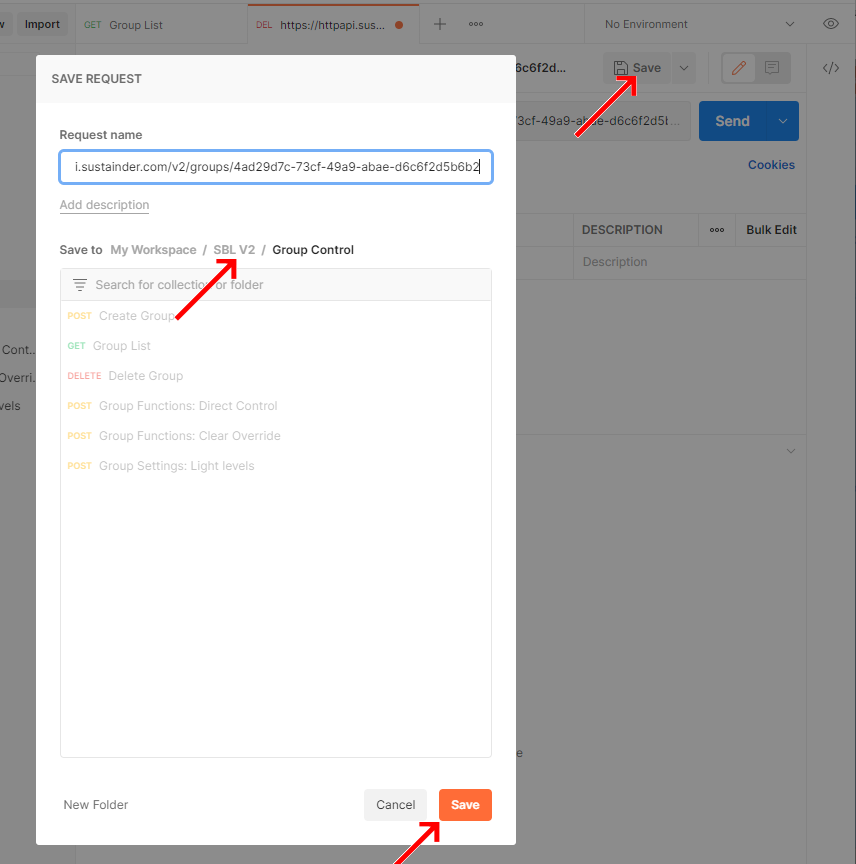
Save the command into the SBL_V2 group so it gets the login settings and can be used to transmit.
Send the command.
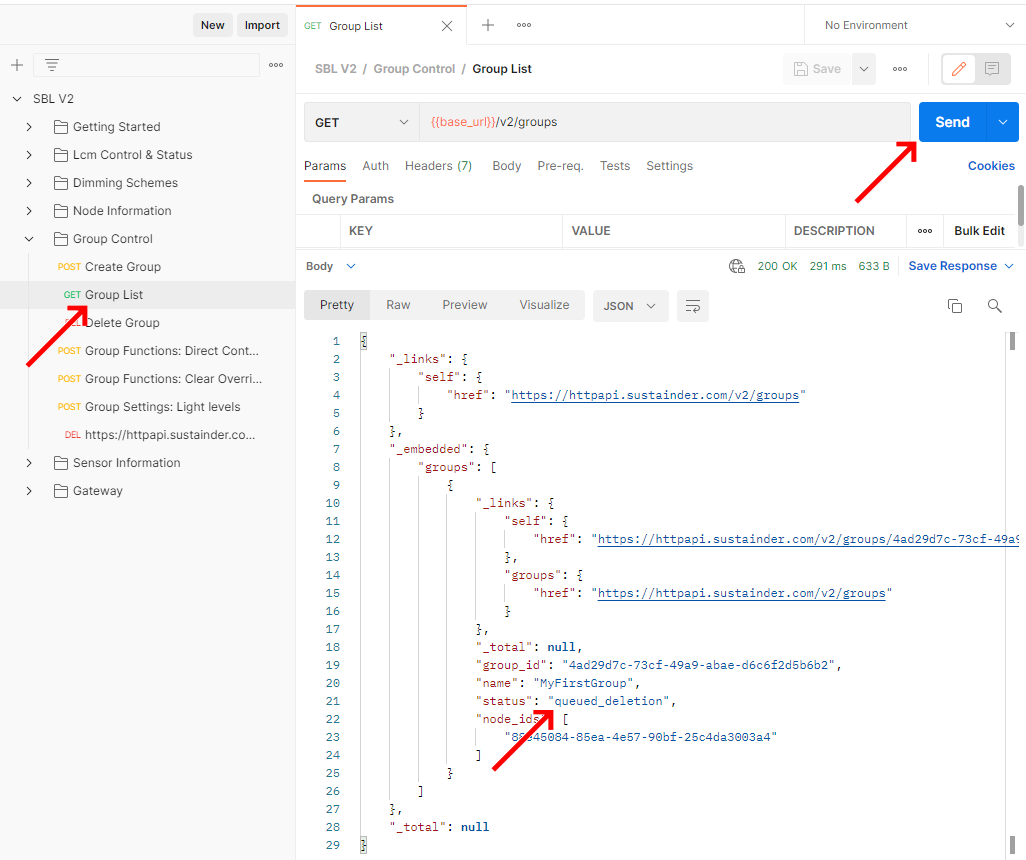
The group will now be marked as deleting queued when listing the group list again.
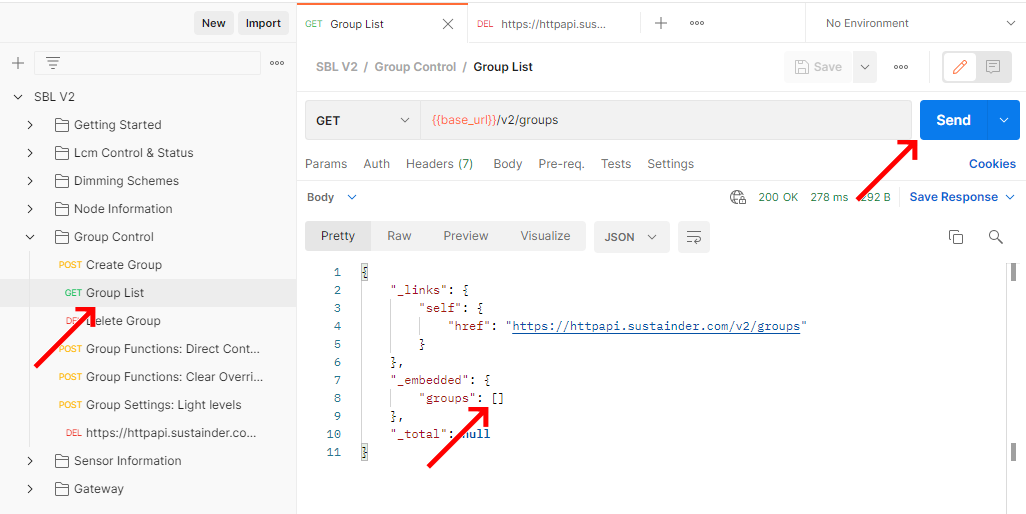
Once the group has been succesfully removed from the Lcm the group will be removed from the group listing.
Group Light Control
Some of the Lcm commands can also be send to groups, such as setting a temporary override (Direct Control), going back to the dimming scheme (Clear Override) and changing the configuration of the maximum lightlevels of a group (Light Levels). These commands have some slight differences when compared to their Lcm directed commands. A more detailed explanation of the commands can be found at the Lcm targetted commands.
Note that the Preview configuration change (Preview Light Levels) command is not supported as a group command.
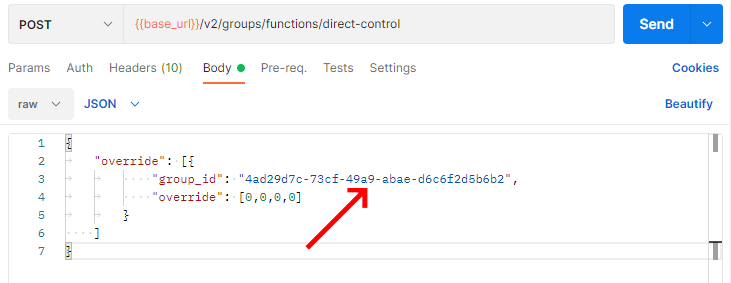
Direct Control (Group)
Direct Control works similar as Lcm Direct Control. However the lcm-id tag is changed for the group-id.
Clear Override (Group)
Clear Override works similar as Go back to automatic dimming (Clear Override). However the lcm-ids tag is changed for the group-ids.
Light Levels (Group)
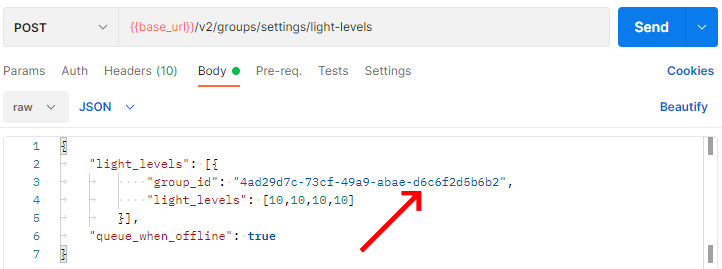
Changing the max light level works similar as Set configuration change (Light Levels). However the lcm-id tag is changed for the group-id.
Sensor data
The SBL has the capability to store sensor data. This is an optional feature that is not enabled by default. If you wish this option enabled please contact your Sustainder Sales person.
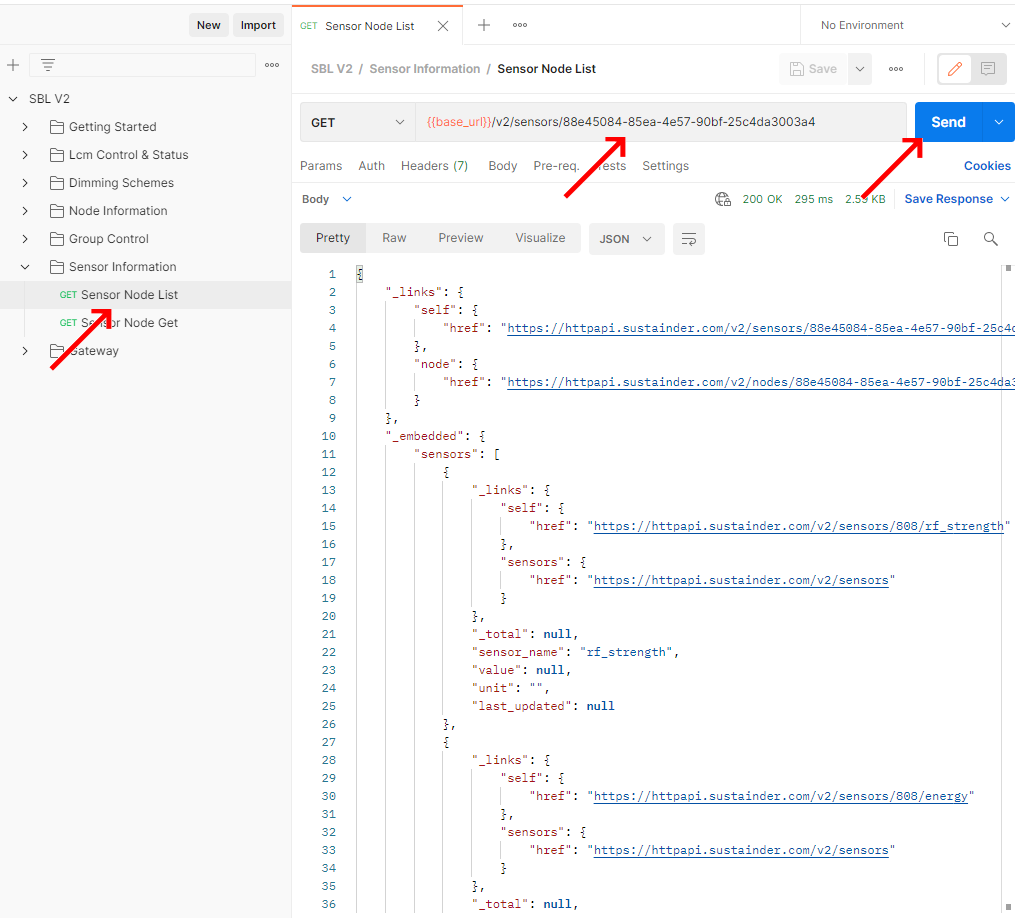
Request the sensor data from a specific node
This request uses the node_id, it can be generated from the Node List command.
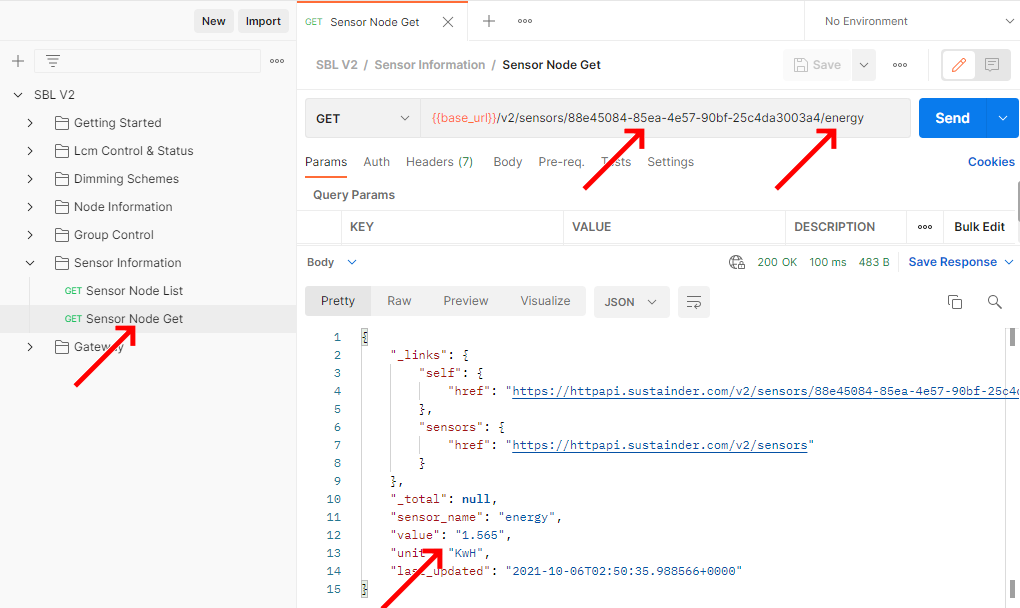
Request data of a specific sensor of a Node
This request uses the node_id, it can be generated from the Node List command, as well as the name of the sensor you wish to request.
Gateway data
The sustainder LCMs are normally reached via a Gateway unit. These gateways form the bridge between the local communication and the SBL server.
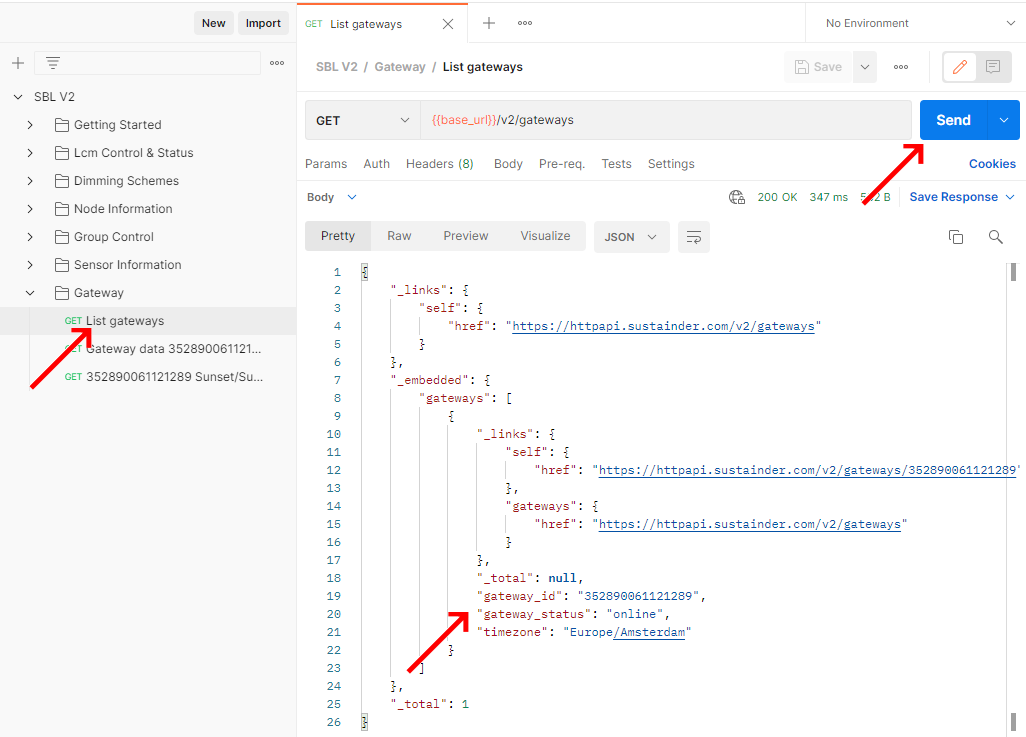
Request the list of gateways
This request uses the gateway id, it can be generated from the Gateway List command.
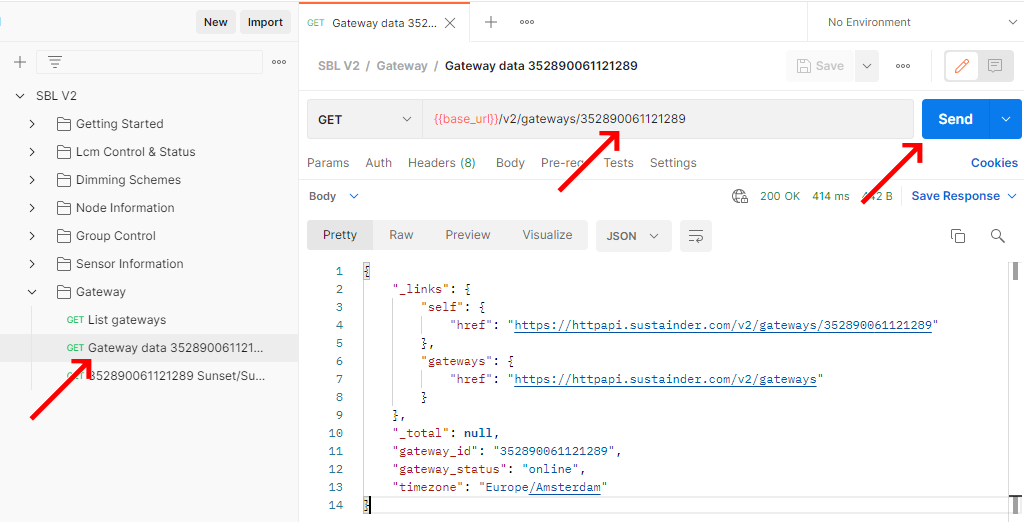
Request the data of a specific gateway
If information of a specific gateway is required that can be requested in this way.
Request the sunset/sunrise moments associated with a gateway
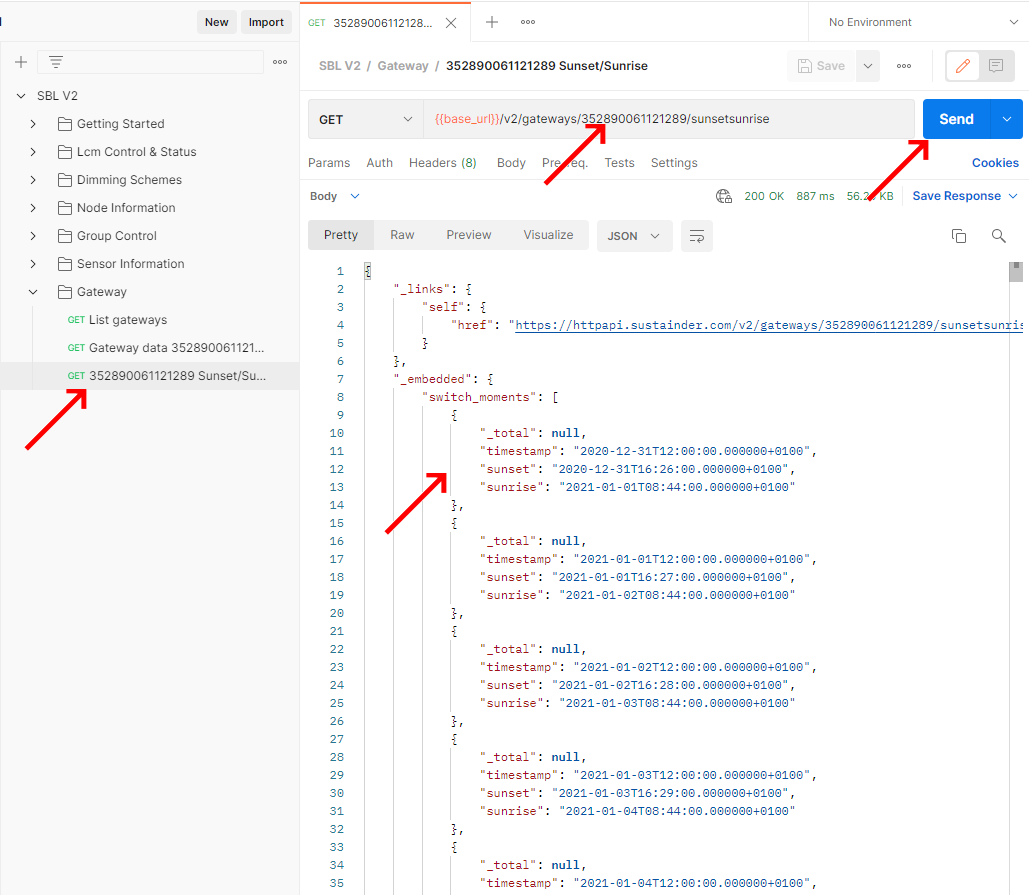
This command returns the sunset and sunrise times for this gateway. This is calculated based on timezone and GPS location. It is currently not possible to set this.